
Integration OWA - Outlook in USD - Part I
This is a series of articles that will discuss the technical and operational possibilities of integrating the Microsoft Outlook calendar of the user connected to USD into the Current Calendar display area of one of the controls hosted in USD.
In several parts it is explained how to display OWA in your USD User Dashboard as well as how to integrate appointments as tasks in CRM and Tasks as Appointments in OWA.
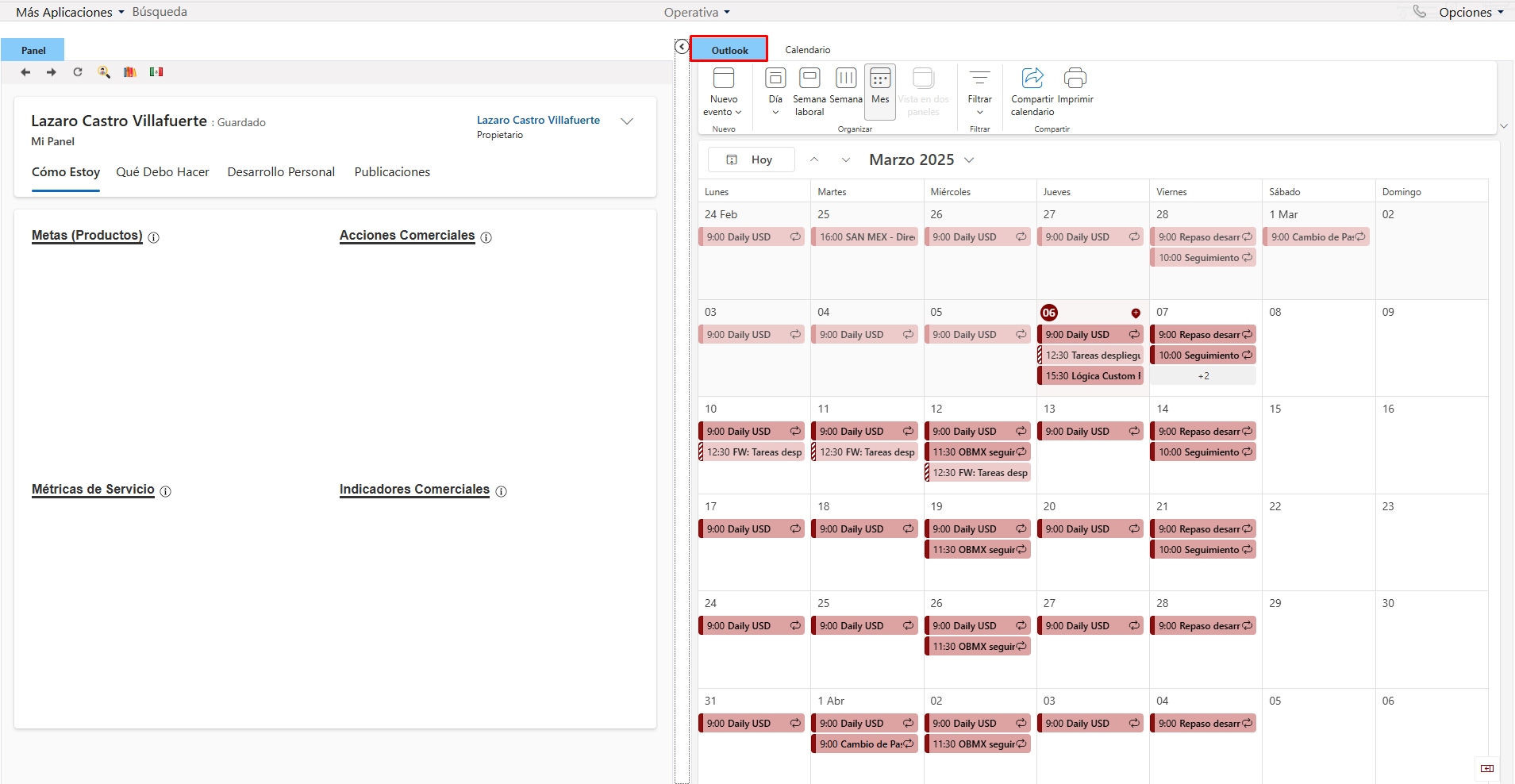
It is possible to display the user's calendar screen within the custom USD area by inserting the call to the Office 365 Outlook URL of the connected user, as long as the following requirements are met:
- The USD screen space will be customized to access the URL: https://outlook.office365.com/calendar/view/month
- The connected user will have a professional or educational email account enabled.
The calendar will display all the activities that the user has scheduled individually, without these having any relation to the activities or tasks of the contacts in USD that are displayed in the received calls, because there is no connection between both systems. To insert complete these funcktionallity please follow the next steps:
- Create a hosted Control to allocate the outlook OWA.
- Name: lcv_hc_Outlook
- Type: Standard web Page
- Global: Yes
- Dynamic Application: Yes
- Group ofpresentation: OperativePanel ( This Panel is showing in the rigth side of the our USD screen)
- Create Action call to wait a time to call the AC to Open OWA
- Name: lcv_ac_Wait_OpenOutlook
- Period: 1
- Hosted Control: lcv_hc_Outlook
- Action: ExecuteOnTimeout
- Data: milliseconds=1000
- Subaction calls: lcv_ac_Open_Outlook
- Create Action call to Navigate to the OWA Page.
- Name: lcv_ac_Open_Outlook
- Period: 10
- Hosted Control: lcv_hc_Outlook
- Action: Navigate
- Data: url=https://outlook.office.com/calendar/view/month
- Subaction calls: lcv_ac_FocusOutlook
- Create Action call to do focus into the OWA hosted control: lcv_hc_Outlook
- Name: lcv_ac_ac_FocusOutlook
- Period: 10
- Hosted Control: CRM Global Manager
- Action: ShowTab
- Data: lcv_hc_Outlook
- Subaction calls: lcv_ac_HiddenOutlookElements
- Create Action call to hide the elements in the OWA page like Topbar or LeftRail.
- Name: lcv_ac_HiddenOutlookElements
- Period: 50
- Hosted Control: lcv_hc_Outlook
- Action: RunScript
- Data: setTimeout(() => {document.getElementById("o365header").style.display="none";
document.getElementById("TopBar").style.display="none";
document.getElementById("LeftRail").style.display="none";
}, 1000)
To automatically display the OWA screen in the OperativePanel when USD is opened, simply set the action call: lcv_ac_Wait_OpenOutlook as a subaction of the DesktopReady Event of the Hosted Control CRM Global Manager.