How to convert your .pem certificate into pfx and using it in IIS

A single .pem file is not directly compatible with IIS (Internet Information Services). Microsoft IIS servers require certificates to be in a format that contains both the public certificate and the private key in a single password-protected file, typically with the extension .cert .pfx or.p12 .private.
To use a file .pemin IIS, you must convert it to PFX format using the OpenSSL tool.
Steps to convert PEM file to PFX
You will need three base files:
The main certificate (e.g. cert2.pem).
The private key (e.g., privkey.pem).
The intermediate certificate (fullchain2.pem)
OpenSSL conversion command:
Open your terminal (on Linux or using the Windows Subsystem for Linux - WSL) and run the following command line:
openssl pkcs12 -export -out lemursolution.ddns.net.pfx -inkey privkey.pem -in cert2.pem -certfile fullchain2.pem
Note: During the process, the system will ask you to create a password. Be sure to remember it, as you will need it when importing the certificate into IIS.
How do I install a PFX file in IIS?
Once you have your generated file .p12, .pfx you can install it on your Windows server by following these steps:
Open MMC: Press Windows Key + R, type mmc, and click OK.
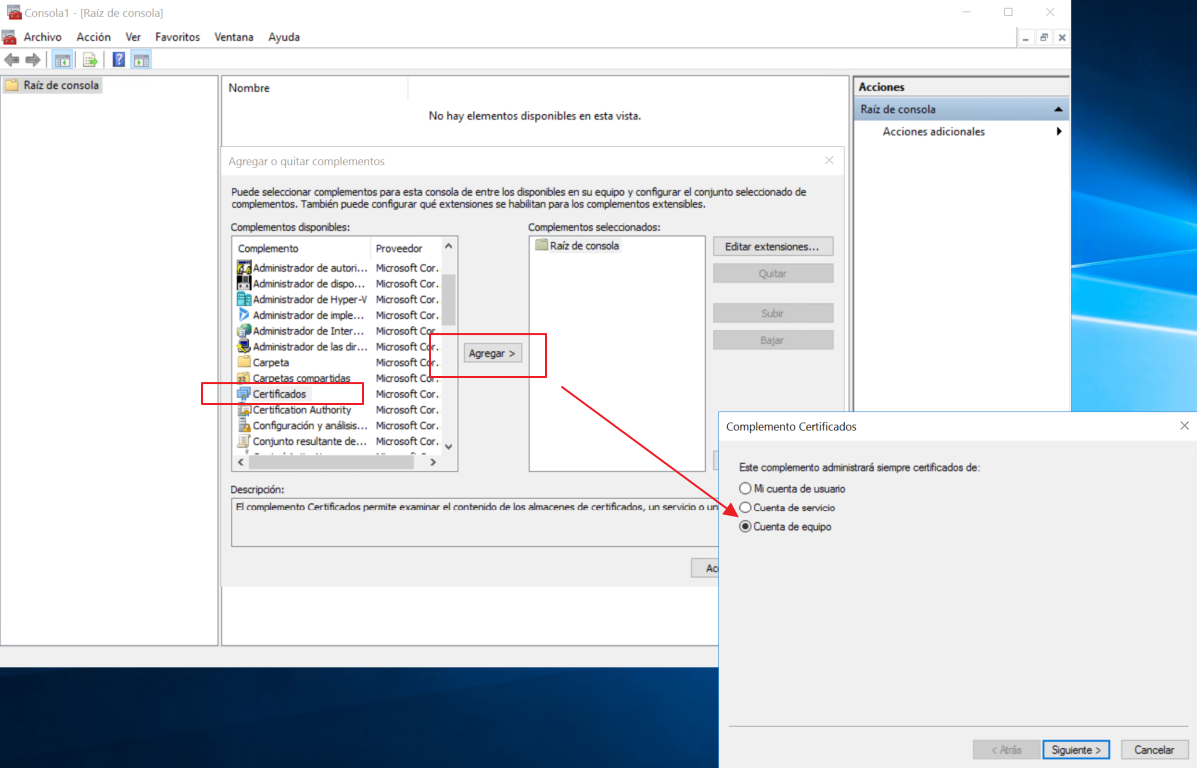
Add Certificates Snap-In: Go to File > Add/Remove Snap-in. Select Certificates from the list, click Add, then choose Computer account and click Next.
Target Local Computer: Select Local computer, click Finish, and then click OK to close the Add/Remove Snap-in window.
Initiate Import: In the left pane, expand Certificates (Local Computer). Right-click on Personal, select All Tasks, and click Import.

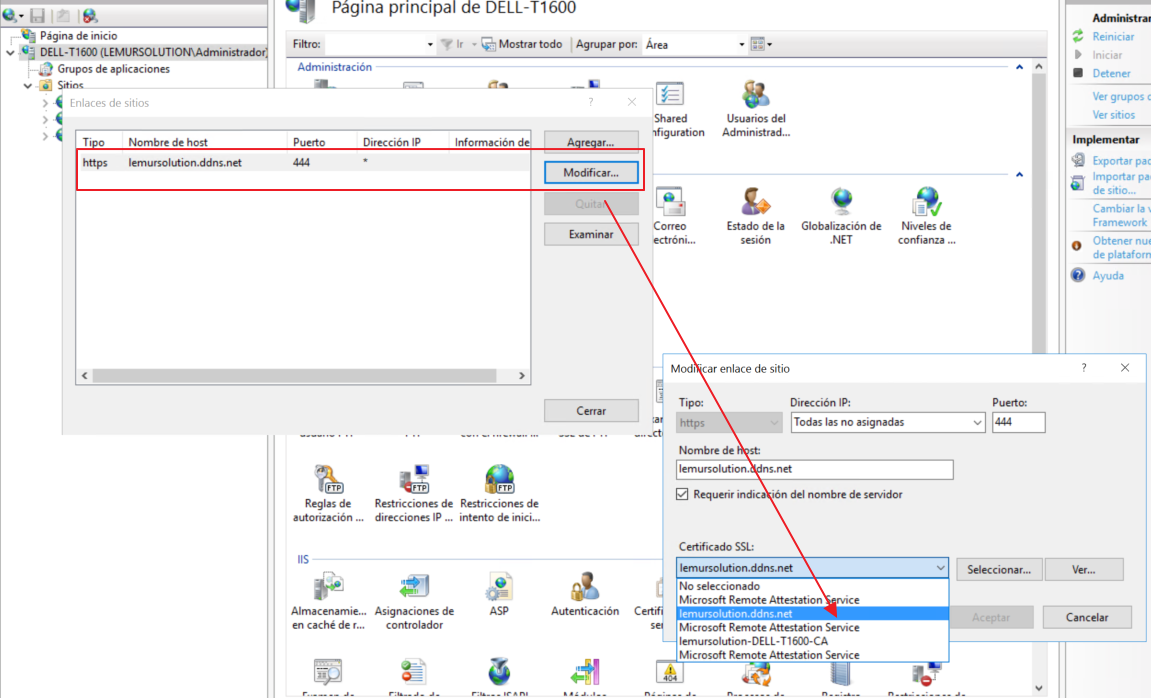
Once imported, go to the website in IIS, click on Bindings , add or edit a binding type https, and select the newly imported certificate from the drop-down list